A basic application example
This example will show how components and predicate events can be used to create dynamic behavior in an AICA application.
Setting up the application
Launch AICA Studio and create a new application by pressing "Create new". Copy the following application code into the Code tab of the right panel, replacing the default content.
schema: 2-0-6
dependencies:
  core: v5.0.0
on_start:
  load:
    component: timer
components:
  timer:
    component: aica_core_components::utility::Timer
    display_name: Timer
    events:
      transitions:
        on_load:
          lifecycle:
            component: timer
            transition: configure
        on_configure:
          lifecycle:
            component: timer
            transition: activate
      predicates:
        is_timed_out:
          transition: timer_2
    parameters:
      rate:
        value: 5
        type: double
      timeout:
        value: 2
        type: double
  timer_2:
    component: aica_core_components::utility::Timer
    display_name: Timer 2
    events:
      transitions:
        on_load:
          lifecycle:
            component: timer_2
            transition: configure
        on_configure:
          lifecycle:
            component: timer_2
            transition: activate
      predicates:
        is_timed_out:
          transition: timer
    parameters:
      rate:
        value: 5
        type: double
      timeout:
        value: 4
        type: double
graph:
  positions:
    on_start:
      x: 0
      y: -20
    stop:
      x: 0
      y: 140
    components:
      timer:
        x: 320
        y: -20
      timer_2:
        x: 840
        y: -20
  edges:
    timer_is_timed_out_timer_2_timer_2:
      path:
        - x: 780
          y: 200
        - x: 780
          y: 40
    timer_2_is_timed_out_timer_timer:
      path:
        - x: 1280
          y: 200
        - x: 1280
          y: 280
        - x: 300
          y: 280
        - x: 300
          y: 40
Then, press the Generate Graph button. The graph should show two components connected with event edges.

The example explained
The application begins with the on_start directive to list the initial application events.
on_start:
  load:
    component: timer
In this case, the first event that occurs in the application is to load the timer component.
Application components are listed under the components field. Each component has a name and a registration. The
display name field is used just for rendering the component on the graph.
  timer:
    component: aica_core_components::utility::Timer
    display_name: Timer
In this case, aica_core_components::utility::Timer is the registration of a built-in AICA component. It is a lifecycle
component that starts a timer when the component is activated.
The events field of a component associates component state transitions and predicates with events.
    events:
      transitions:
        on_load:
          lifecycle:
            component: timer
            transition: configure
In this case, when the timer component is loaded, it triggers a lifecycle transition to configure itself. Similarly, the next event activates the timer when it is configured:
        on_configure:
          lifecycle:
            component: timer
            transition: activate
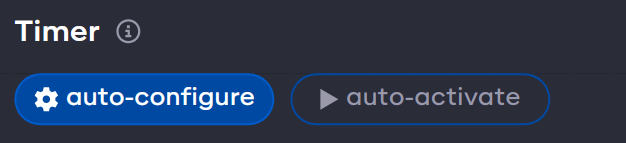
When a lifecycle component configures or activates itself automatically, this is known as "auto-configure" and "auto-activate", respectively. The graph allows enabling and disabling these automatic transitions through the respective buttons under the component name.
Thereafter, the timer component has a special predicate is_timed_out, which is internally associated with the
timeout parameter.
      predicates:
        is_timed_out:
          transition: timer_2
In this case, after the timer component has been active for 2 seconds, it triggers a transition event to timer_2. The
transition event from timer to timer_2 is a shorthand for unloading the first component and loading the second.
Finally, the initial component parameters are defined.
    parameters:
      rate:
        value: 5
        type: double
      timeout:
        value: 2
        type: double
All components have a rate parameter which defines the frequency of periodic execution steps. The default rate for
components is 10 Hertz, so 10 times per second. The component rate can be increased or decreased to make a component run
faster or slower, respectively.
The timer component has a special parameter called timeout, which is the duration in seconds that the timer should be
active. At the end of the timeout period, it will be in the "timed out" state.
Parameter definition includes a value and a type akin to original ROS parameters that are type-sensitive. This syntax informs the Event Engine that the parameter should be parsed as a floating-point value instead of the "equivalent" integer value.
The second block describing timer_2 is nearly identical (apart from a different value for the timeout parameter), as
the two timers are intended to have symmetrical behavior.
Run the application
Press the Start button to start the application.
When the application is started, the timer component is loaded. It is initially unconfigured, which triggers it to be
configured. Thereafter, it lands in the inactive lifecycle state, which triggers it to be activated. Once activated, the
timer starts running. After 2 seconds (as specified by the timeout parameter), the is_timed_out predicate goes from
false to true. As a result, the transition event causes timer to be unloaded and timer_2 to be loaded instead. The
second timer then goes through the same steps of configuring and activating before transitioning back to the first
timer after 4 seconds.
In the AICA System, events are the key drivers of application logic. While the application is running, events can be triggered automatically from transitions or predicates, as seen in this example, but also by other event sources such as conditions, sequences, interactive trigger buttons in AICA Studio and even external API calls.
Finally, use the Stop button to stop the application. This will deactivate and unload all components and controllers and fully reset the application.
Next, learn how to edit the application using the interactive graph editor.