AICA Studio
This section will give a brief, high-level tour of AICA Studio to help situate new users. Underlying concepts and examples are covered in more depth in later sections of this documentation.
In short, AICA Studio is the graphical user interface layer to the AICA System to create, monitor and extend advanced robotic applications. It features an interactive application editor with a dataflow graph builder, a 3D scene visualizer and live data visualization. It also allows managing hardware configuration, user profiles and more.
Logging in to AICA Studio
When accessing AICA Studio through Launcher or the browser, you may be prompted to log in or create a new profile. This is explained in more detail in the Profiles and scopes section.
Application manager and editor
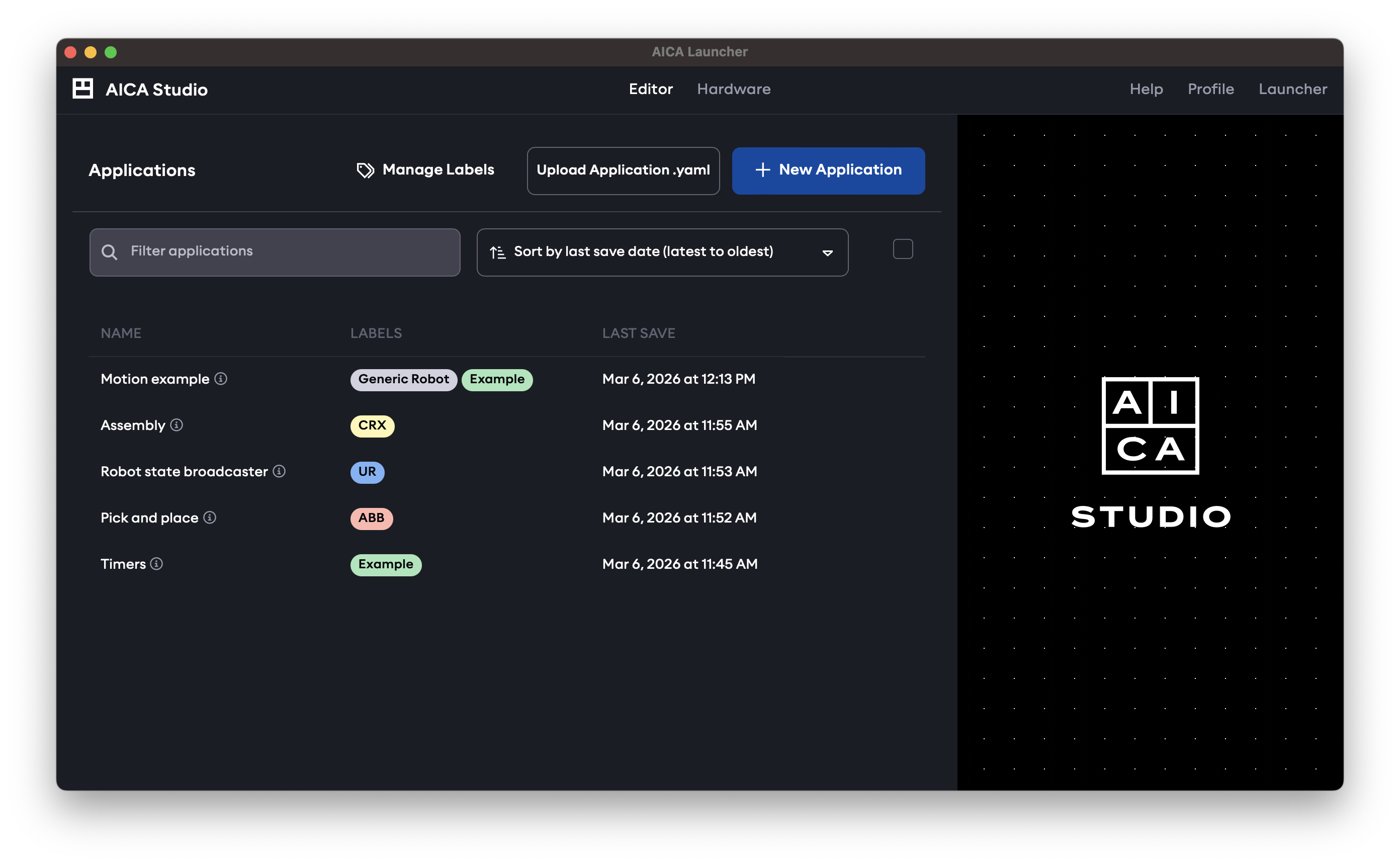
After logging in, AICA Studio starts with the Editor page open by default, which is a combined application manager and editor. This page can also be accessed by clicking the Editor link in the top navbar.
In the application manager view, it shows a list of saved applications and presents options to create a new application or upload applications from file. For a new installation with no saved applications, the list will be empty.
Selecting an application from the list or creating a new application will enter into the application editor, the elements of which are described in the following subsections. To return to the application manager view, the currently open application must first be closed.
📄️ Application editor
When an application is created or selected for editing, the following application editor screen will appear.
📄️ Application graph
The AICA application graph is a unique way of expressing complex and reactive logic for robotic control. It combines
📄️ 3D view
The 3D scene view shows hardware models and frames of the current application. When the application is running, the
📄️ Right panel tabs
The right panel of the AICA application editor is an interactive window into configuring and monitoring all aspects of
📄️ Profiles and scopes
The concept of "Profiles" in this section refers to creating distinct access credentials (or service accounts) for
Hardware manager
The other top-level page is the hardware manager, available under the Hardware link in the top navbar.
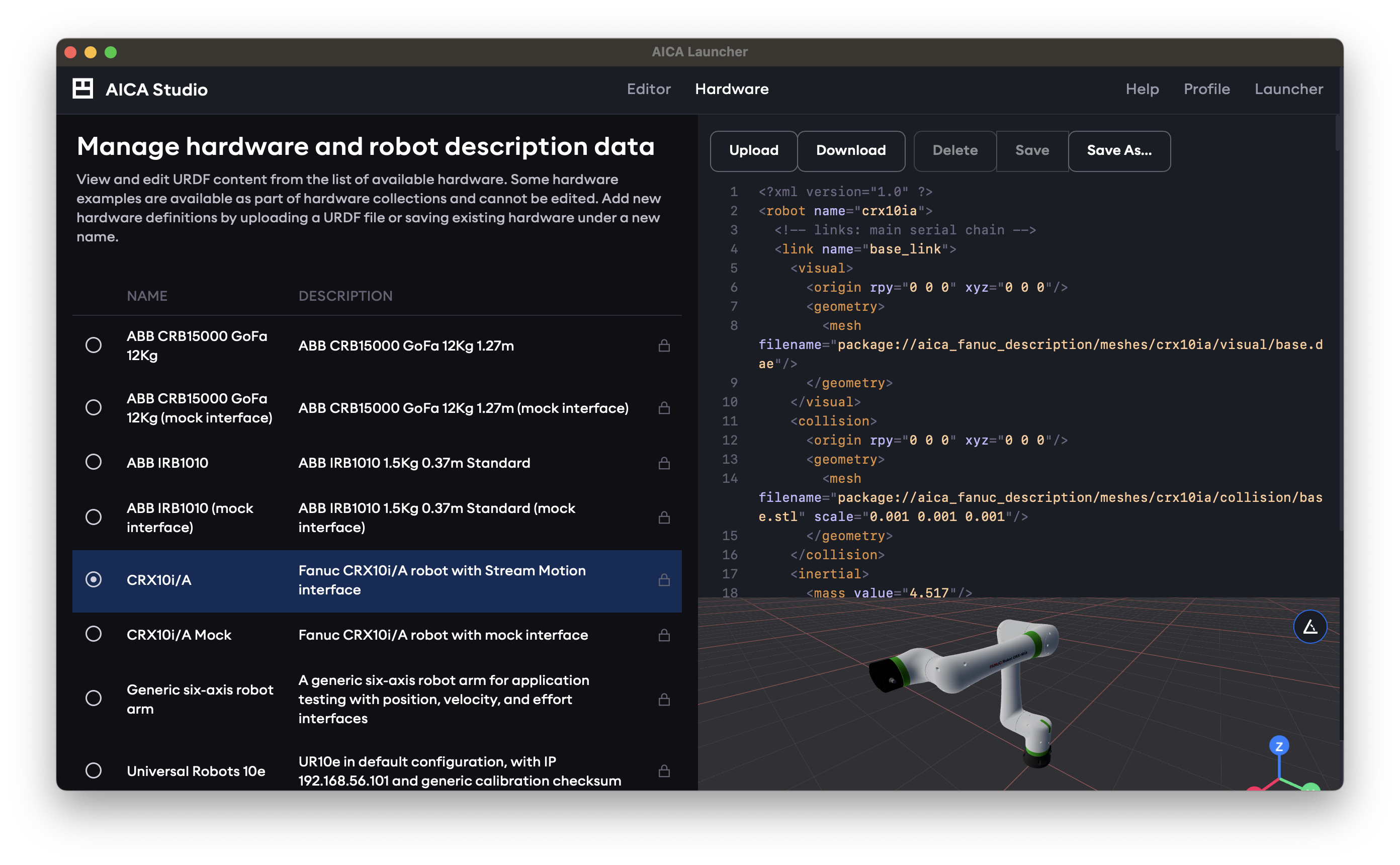
This page lists available hardware descriptions in the URDF format. Some built-in examples will be included in the installation depending on which specific hardware collection packages were installed in the AICA System configuration. New hardware definitions can be added by uploading a URDF file or copying and editing existing hardware under a new name.
Any hardware listed in the hardware manager can be loaded and used in an application.
Help
The Help link in the top right section of the navbar is used to access a help page with links to documentation and learning resources.
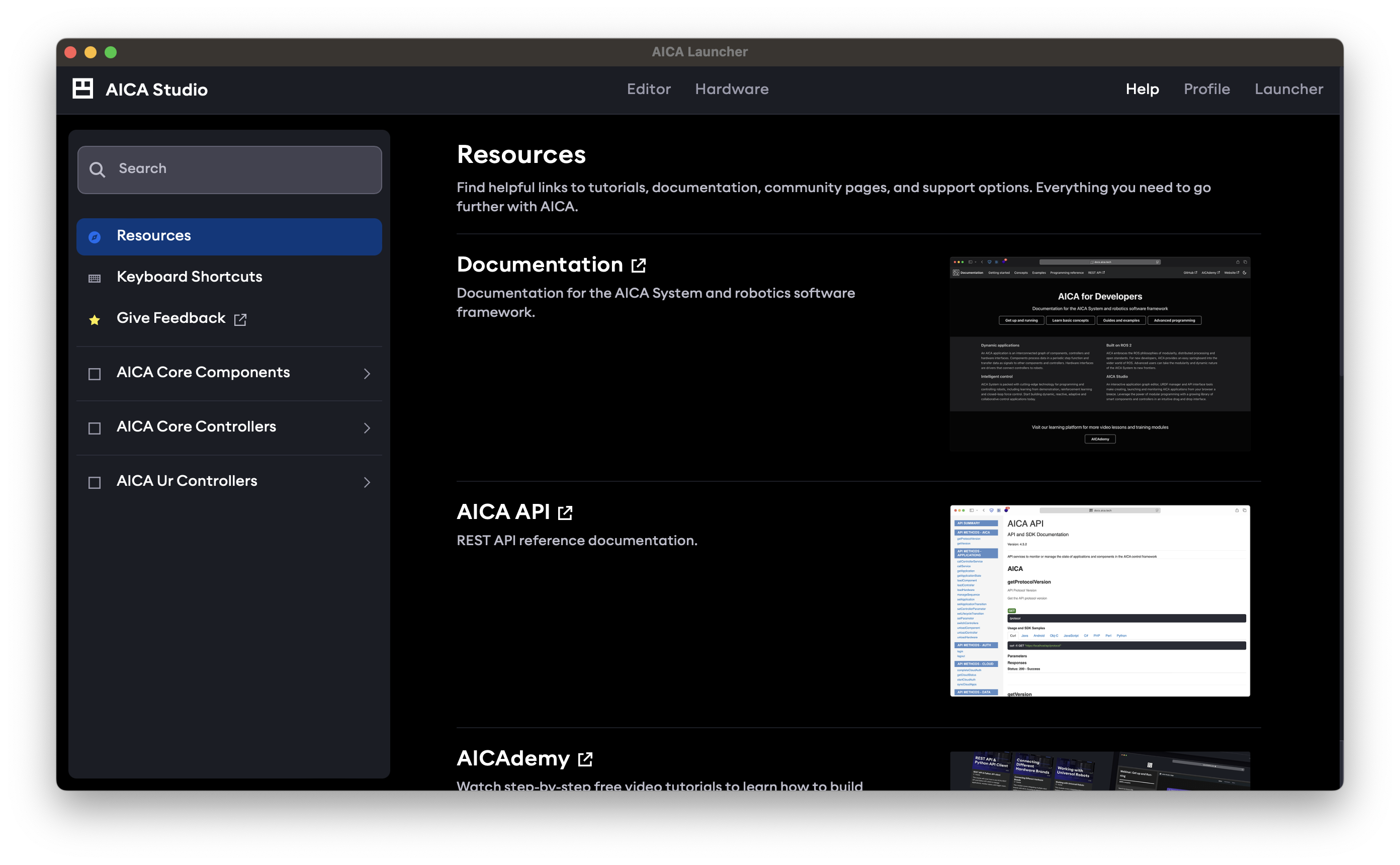
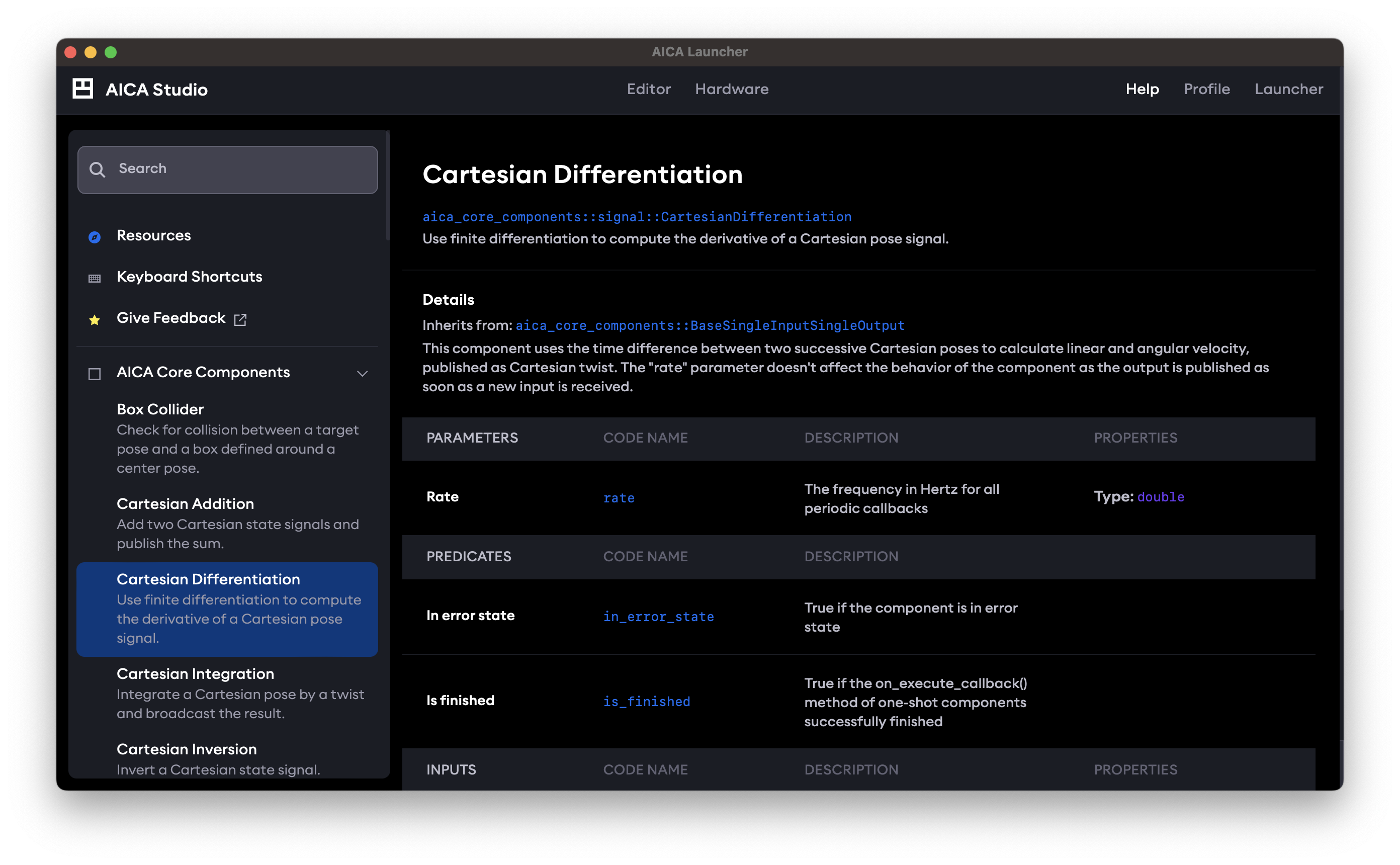
It also includes reference documentation for the installed components and controllers in the AICA System configuration.
Profile
The Profile link in the top right of the page is used to access and manage the currently logged-in user profile.
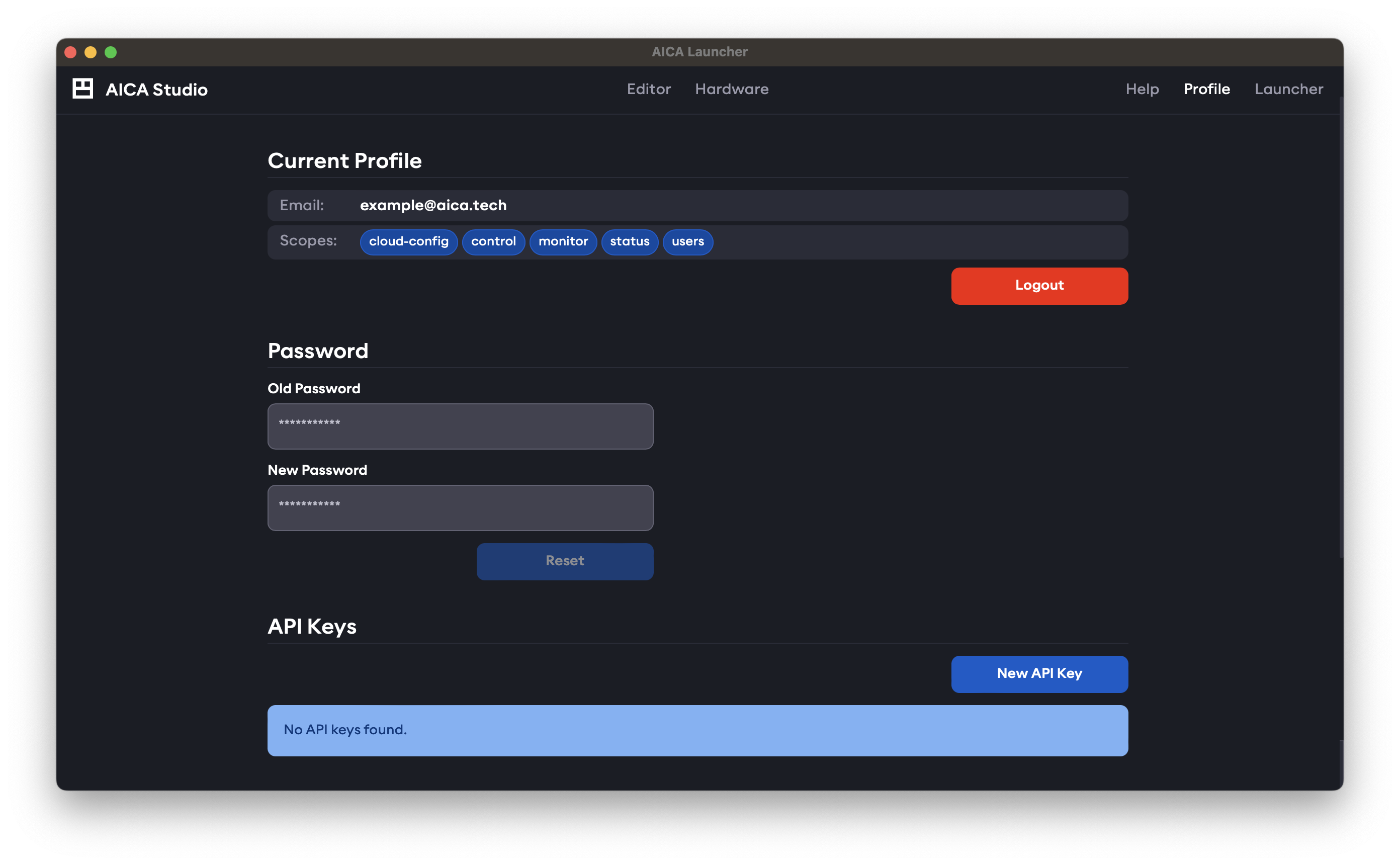
Read more about user scopes and API keys in Profiles and scopes.
AICA Studio with Launcher
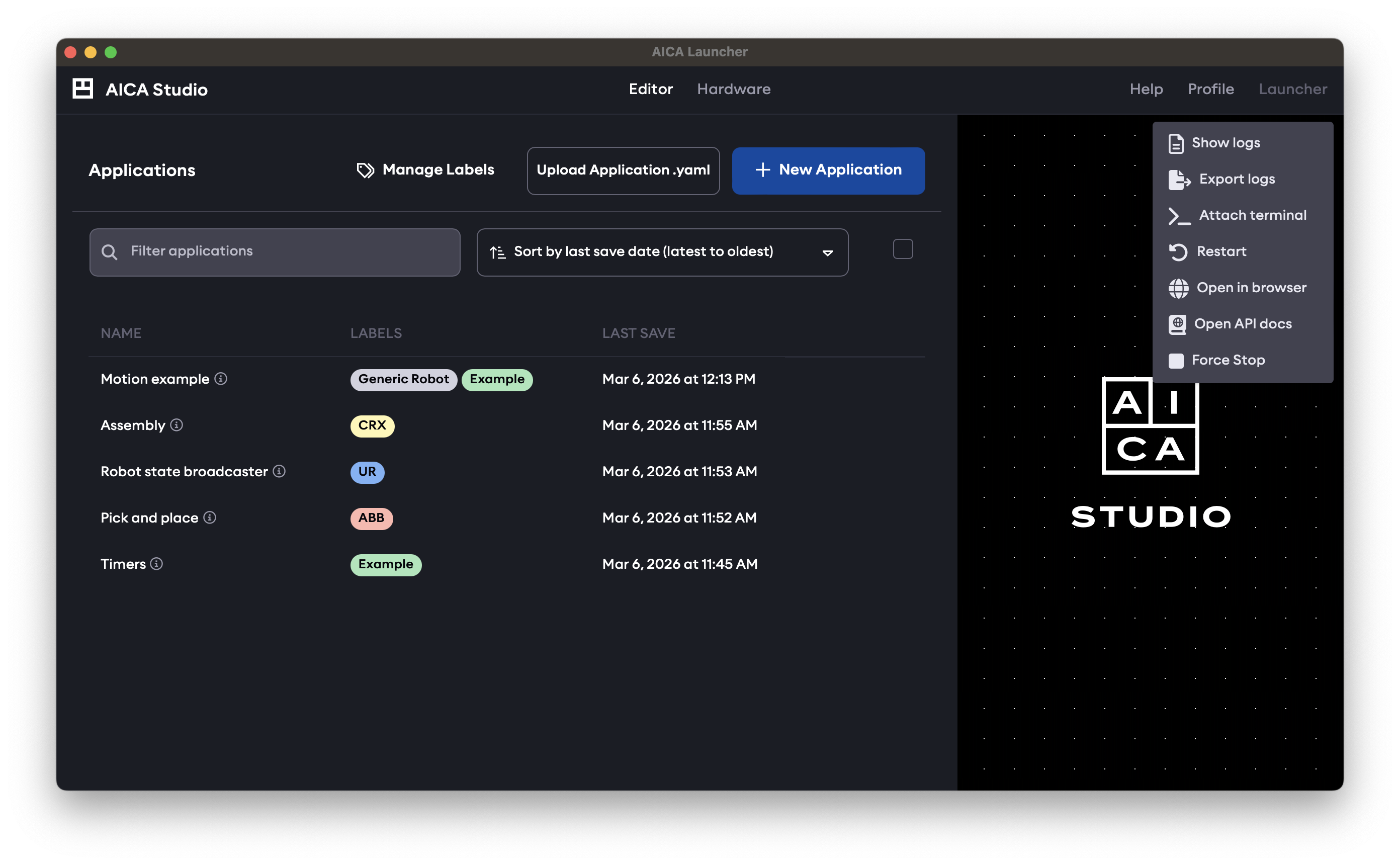
When using AICA Launcher v1.5.0 or newer with AICA Core v5.1.0 or newer, settings and controls related to AICA Launcher are available from the top right Launcher link in the navbar. This can be used to open Studio in a separate browser window, view API reference, logs or other container details, or to stop and return to the AICA Launcher configuration selection.